

Edit Surface & Body Mesh |  |
EMA3D allows users to manually edit or delete parts of the model mesh in order to avoid conflicts with geometric overlaps or to better represent the model geometry.
 Instructions
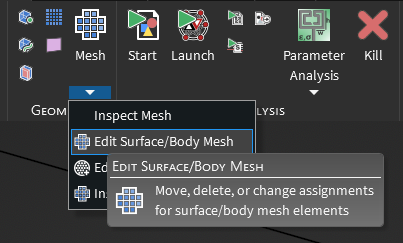
Click the dropdown arrow beneath the
 Mesh button under the EMA3D tab in the ribbon. Then select Edit Surface/Body Mesh.
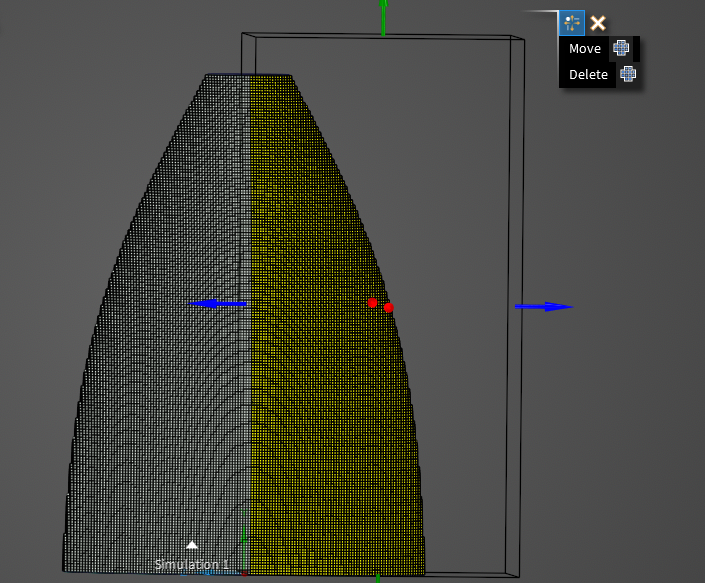
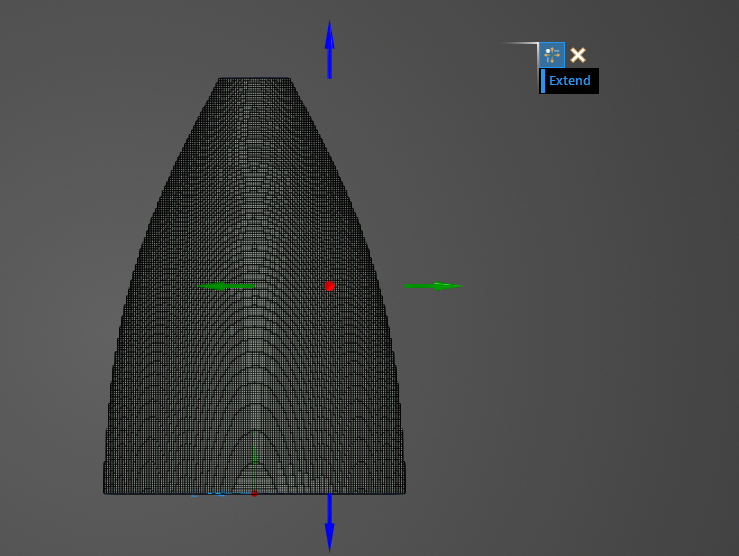
Drag the directional arrows that appear in the model window to select the region of mesh to be edited.The selected mesh cells will turn yellow.
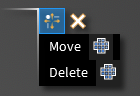
After selecting the mesh cells to be edited, in the HUD, select either
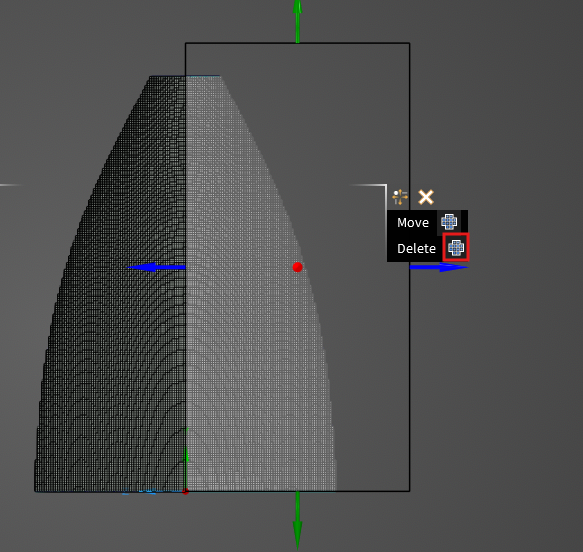
Move or Delete to perform the desired action on the selected mesh.
Delete will immediately delete the mesh cells.
Selecting Move will bring up a new set of directional arrows. To extend the mesh while maintaining connectivity, set Extend to True (blue) and use the directional arrows todrag the mesh as desired. To move the mesh elements without maintaining connectivity, set Extend to False (white) and use the directional arrows to move the mesh as desired.
Click OK
 to complete the mesh editing. Then click OK again to save the new mesh.
 Options
Entry | Meaning |
|---|---|
Move | Moves the selected mesh cells. |
Delete | Deletes the selected mesh cells. |
Extend | When true (blue) use the arrows to extend the mesh while maintaining connectivity. When false (white), use the directional arrows to move the mesh elements without maintaining connectivity. |
EMA3D – © 2026 EMA, Inc. Unauthorized use, distribution, or duplication is prohibited.