

Voltage |  |
EMA3D allows setting voltage distributed across geometry as an excitation source. The locations of the voltage sources are specified by identifying geometry or nodes where the source is to be applied, with additional data provided to specify the source characteristics.
 Instructions
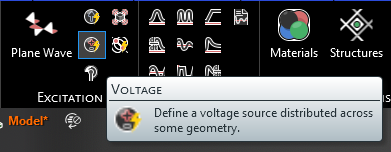
Click
 Voltage within the Excitations section under the EMA3D tab in the ribbon.
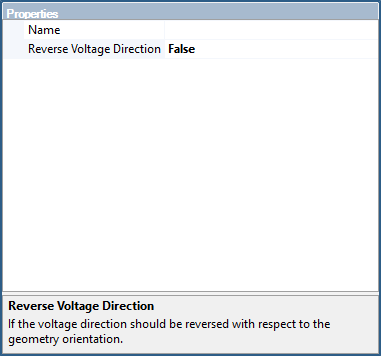
In the Properties Panel, adjust the voltage source properties as desired.
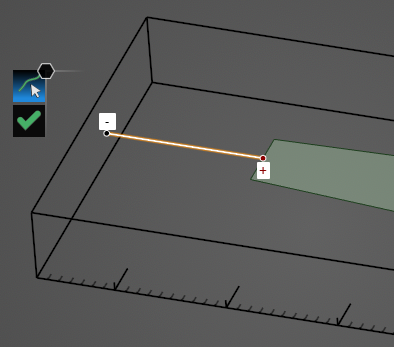
Use the line selection
 tool to select the line to which to assign the voltage source definition. Note that the geometric entity used for the source should not have a material definition assigned to it.
Click OK
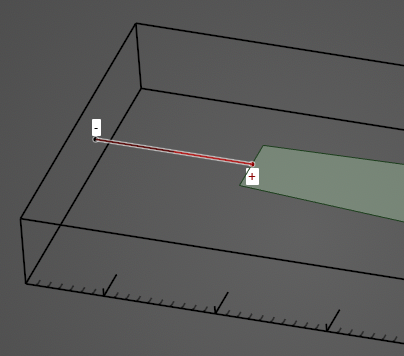
 to complete the voltage source definition. The voltage source will be recolored red and black with +/- end labels in the model window.
The excited geometry will be recolored red and black in the model window (users may need to click elsewhere in the model window to remove the highlighting). The positive end of the excited geometry will be indicated by a red dot with a + symbol and the negative end will be indicated by a black dot with a - symbol.
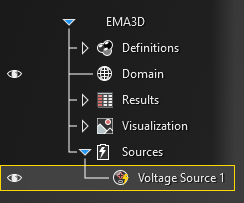
The voltage source will be added to the Simulation Tree under the Sources node as
Voltage Source.
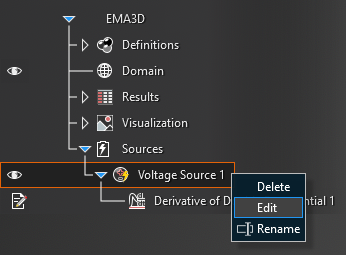
Drag and drop a signal onto the source to activate it.
Adjust the definitions of the Voltage Source at any time by right clicking it within the Simulation Tree and selecting Edit from the pop-up menu.
 General
Entry | Meaning |
|---|---|
Name | Voltage source name. |
Color | Color to use when rendering voltage source. |
Vector Direction | Vector direction of voltage source excitation. |
Reverse Voltage Direction | If the voltage direction should be reversed with respect to the geometry orientation. |
EMA3D – © 2026 EMA, Inc. Unauthorized use, distribution, or duplication is prohibited.